
Send feedback with the widget
Report a bug, share an idea or ask a question from inside the app you use, with a marked-up screenshot or a short recording.
Updated 8 min read
Many apps built with ilumd have a help button in a corner of the screen. Its Feedback tab sends a message straight to the team that builds the app, with a screenshot or a short recording of what you see. Use it to report something that’s broken, suggest a change, or ask a question.
This guide is for the people using the app. If you set the widget up for an app, see Feedback instead.
Open the widget
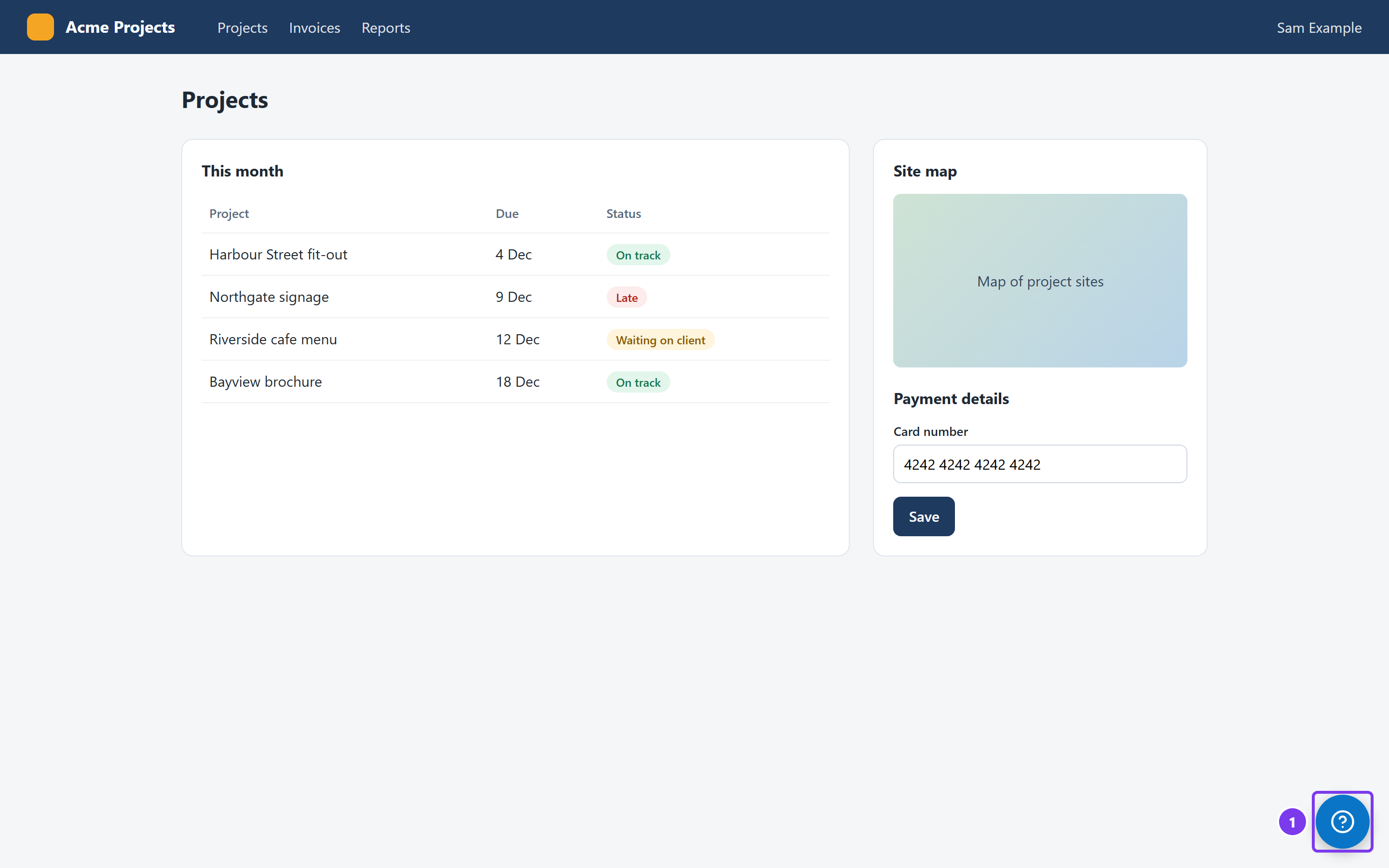
- Select the widget’s button (1), in a corner of the app’s screen. Its look and corner are the team’s choice: a round icon, the team’s logo or a word such as “Help” or “Feedback”. The widget opens beside the page.
- If it opens on Help, select the Feedback tab at the top. The feedback form appears.
A button that names feedback opens straight on Feedback. On Help, Contact the team at the bottom also opens the form, with Ask a question chosen. Some apps have a feedback link of their own that opens the widget on Feedback. If you see no Feedback tab, the team hasn’t turned feedback on for this app.
Choose what it is and say what you mean
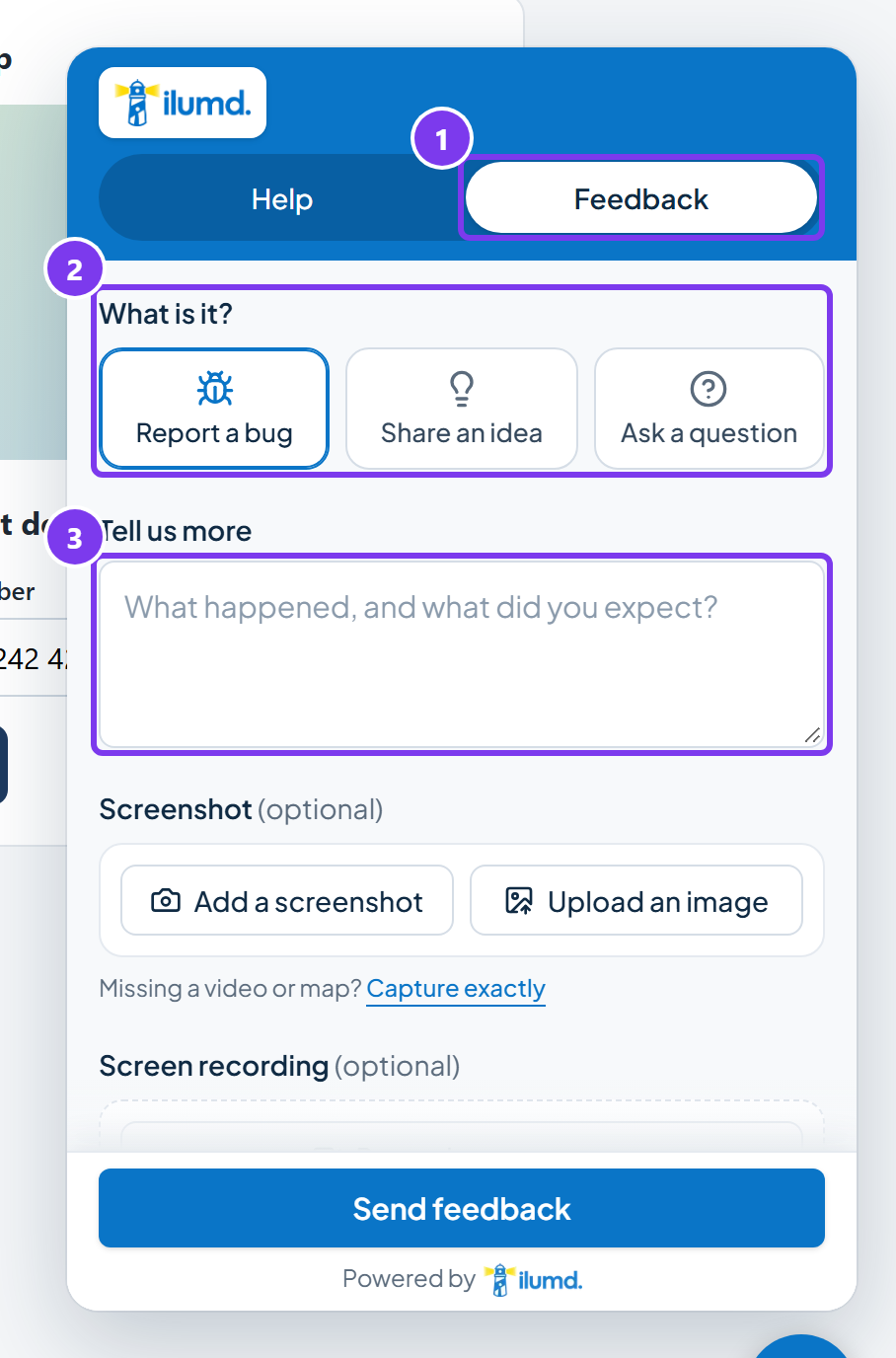
- Check that Feedback (1) is the selected tab.
- Under What is it? (2), choose the kind of feedback. Report a bug is chosen to start with.
- In Tell us more (3), write your message. The box suggests what to write for the kind you chose.
| Choose | When | The box asks |
|---|---|---|
| Report a bug | Something is broken, wrong or looks out of place. | “What happened, and what did you expect?” |
| Share an idea | You’d like something changed or added. | “What would make this better for you?” |
| Ask a question | You aren’t sure how something works, or why it does that. | “What would you like to know?” |
What makes feedback the team can act on
- For an idea or a change request, say why. Name the reason behind it: the task you’re trying to finish, who it’s for, or what it costs you now (“Our accounts team exports this every Friday, and the export stops at 100 rows”). The team may solve it a different way, and the reason lets them choose the right one.
- For a bug or a small fix, say what to change. Say what happened and what you expected, or name the change itself (“The Save button should say Save draft”). No background is needed.
- One issue per message. Send something else for the next one.
- Say where you were and what you did just before. The widget sends the page’s address with your message, so you don’t have to copy it.
A message can be up to 5,000 characters. Send feedback with an empty box says Write a message first.
Add a screenshot
A screenshot is optional, and often the quickest way to show what you mean.
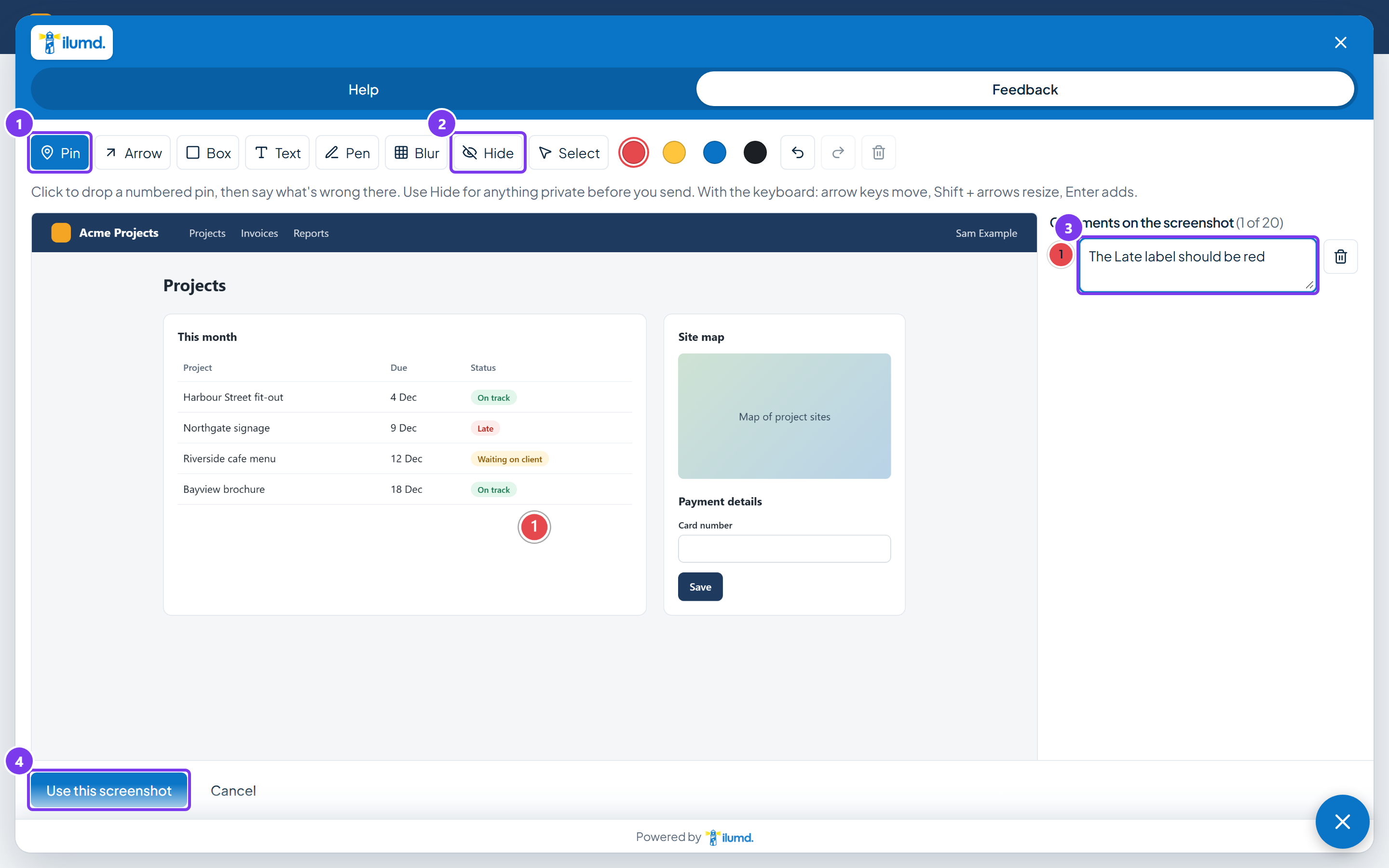
- Under Screenshot, select Add a screenshot to take a picture of the page you’re on, or Upload an image to choose a PNG or JPEG file of your own. The screenshot opens in an editor that fills the screen.
- With Pin (1) chosen, select the spot you mean. A numbered pin appears there.
- Beside the screenshot, type what’s wrong at that pin in its comment box (3). Add more pins the same way, up to 20.
- Before you send, choose Hide (2) and drag over anything private to black it out.
- Select Use this screenshot (4). The form shows a small copy of it, with Mark up again and Remove screenshot.
The editor’s other tools:
- Arrow and Box: drag to point at or outline an area.
- Text: select a spot, then type a label.
- Pen: draw freehand, with a mouse, finger or stylus.
- Blur: drag over text to blur it. For passwords and card numbers, use Hide.
- Select: select a mark, then delete it.
- The four colored circles set the color of pins, arrows, boxes, text and pen. Undo and redo are beside them.
Your marks are drawn into the image in your browser. What you hid or blurred never leaves your device; only the pins’ comments travel as text, beside the image.
What a screenshot leaves out by itself
Add a screenshot redraws the page in your browser, with no prompt:
- Passwords, card numbers and one-time codes are never drawn. Their fields show empty, as the card number does in the image above.
- Anything the app’s team marked private (with
data-ilumd-mask) shows as a plain gray block, and anything markeddata-ilumd-ignoreis left out. - The widget itself is never in the picture.
When the screenshot misses something: Capture exactly
Because Add a screenshot redraws the page, it can miss things that aren’t part of the page itself, such as embedded videos, maps and payment fields. For those, use Capture exactly.
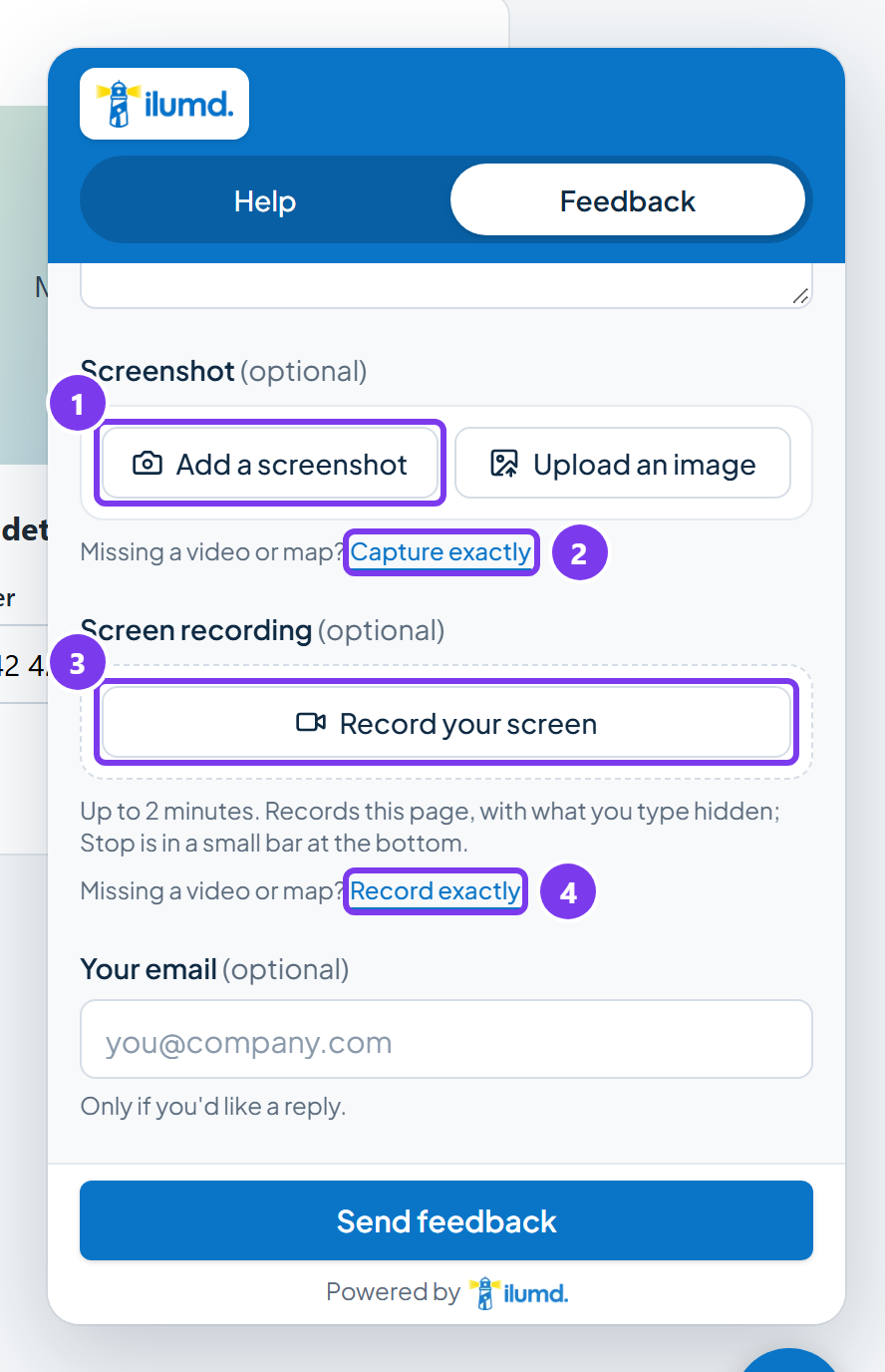
- Add a screenshot (1) redraws the page, with no prompt.
- Capture exactly (2), under “Missing a video or map?”, takes a true picture of your browser tab. The widget steps out of the way, and your browser asks what to share; most browsers offer this tab first. Choose the tab and share it. The browser takes one picture and stops sharing, and the picture opens in the same editor.
Capture exactly copies the tab exactly as it is, so nothing is hidden for you: hide anything private on the page first, or black it out with Hide in the editor. Your browser asks every time; if you cancel, nothing is taken. Capture exactly appears only in desktop browsers that can share a tab, not on phones.
Record what happened
When the problem is a sequence of steps, such as something that goes wrong on the third click, a recording shows it better than a picture. Screen recording is optional, and lasts up to 2 minutes.
Record your screen
- Under Screen recording, select Record your screen (3 in the image above). The widget closes, and a small bar appears at the bottom of the screen with Recording this page and the time.
- Do the steps that show the problem.
- In the bar, select Stop (1 in the image below). The widget opens again, with Page recording, its length and size in the form.
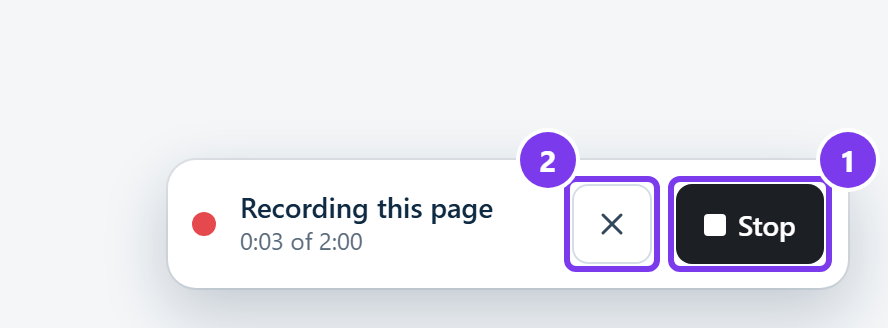
To throw the recording away instead, select the × (2) beside Stop. A recording stops by itself at 2 minutes. In the form, Record again replaces it and Remove recording drops it.
Record your screen records this page’s content as it changes, not a video of your screen, so the browser doesn’t ask first, and it works on phones too. It keeps what you type hidden: the values of fields aren’t recorded unless the team marked a field as safe, and passwords, email addresses, phone numbers, card numbers and one-time codes never are. Videos and content embedded from other sites, such as many maps, show as empty boxes, and there is no sound.
Record exactly
For what a page recording can’t show (a video, a map, a payment form), select Record exactly, under “Missing a video or map?” (4 in the image above).
- Select Record exactly. Your browser asks what to share; choose this tab.
- The widget shrinks to a small bar with the time left. Do the steps that show the problem.
- Select Stop. You can watch the video in the form before you send it.
Record exactly is a true video of the tab you share, with no sound, so hide anything private first. It lasts up to 2 minutes or 50 MB, whichever comes first. Your browser asks every time, and ending the share from the browser’s own bar also stops it. It appears only in desktop browsers that can share a tab.
The browser’s sharing prompt is the browser’s own window, so this guide has no picture of it.
Send it
- If you’d like a reply, type your email in Your email. It’s optional. If the app signed you in with your email, there is no Your email box: the form says Sending as your name, with the address the team can reply to.
- Select Send feedback. With a recording, the button shows its upload first.
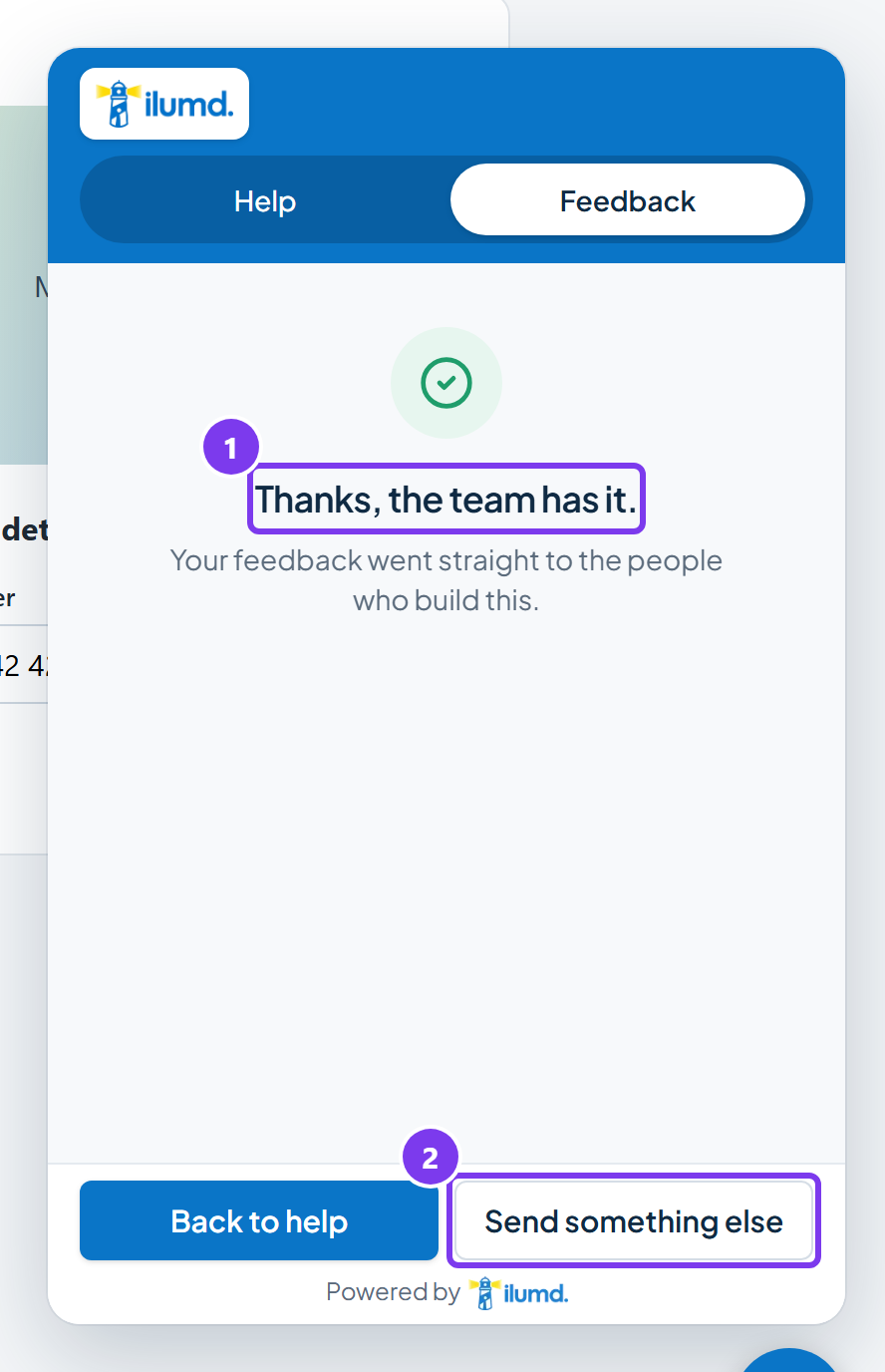
- The widget says Thanks, the team has it. (1). Select Send something else (2) for your next one, or Back to help to return to Help.
If sending fails, the widget says why above the button, keeps your message, and the button becomes Try again.
What happens next
Your feedback goes to the team’s inbox in ilumd, with your screenshot or recording. If the team links ilumd to their own issue tracker, it may also become a ticket there.
When you gave an email, or the app signed you in with one, the confirmation adds that the team will reply by email if they need more.
ilumd can also email you when the team replies to your report in ilumd, or moves it to In progress, Done or Won’t do. Today those emails reach you only when the app signs you in to the widget without sharing your email, and you type your email in Your email. Each one has a Stop emails about this report link, and you can reply to it to answer the team.
What’s sent with your feedback
With your message, the widget sends the page’s address (without anything after a ? or #), the page’s title, the size of your browser window, your browser and its language, and your email if you gave one. If the app signed you in, it also sends who you are as the app knows you. Your screenshot and recording are sent only if you added them.